
Not every partner sends EDI. Invoices, purchase orders, bills of lading and proofs of delivery still arrive as PDFs and scans, by email and in folders. UnifyM reads them with AI, checks them against your own data, and puts each one in front of a person before the data goes anywhere.
Book a demo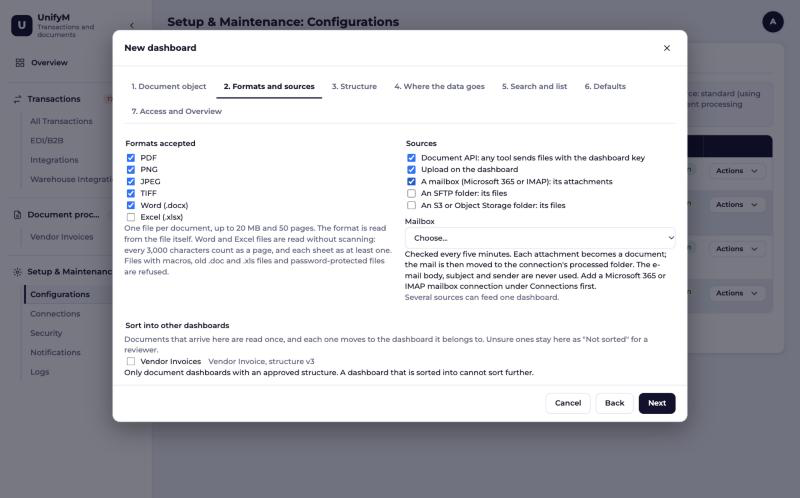
From a PDF in a mailbox to approved data in your system
Describe the document
Name it (Vendor Invoice, Bill of Lading), say what it is and who sends it.
Upload a few samples
AI proposes the structure: header fields, line items, types, required values and which are personal data. From the samples it sees only labels and the shape of values, never the values.
Approve the structure
Edit, add and remove fields, try the structure on each sample, then approve it. Each approval is a new version; each document keeps the version it was read with.
Documents arrive
By the document API from your integration platform or any tool, by upload, from a Microsoft 365 or IMAP mailbox, or from an SFTP or S3 folder. PDF, PNG, JPEG and TIFF, up to 50 pages, and, when a dashboard allows them, Word (.docx) and Excel (.xlsx) files, read directly with no OCR. The same file twice is kept once.
Read, checked and extracted
OCI Document Understanding reads the pages. A language model, given masked text only, confirms it is the right kind of document and extracts the values, each with a confidence.
Checks run
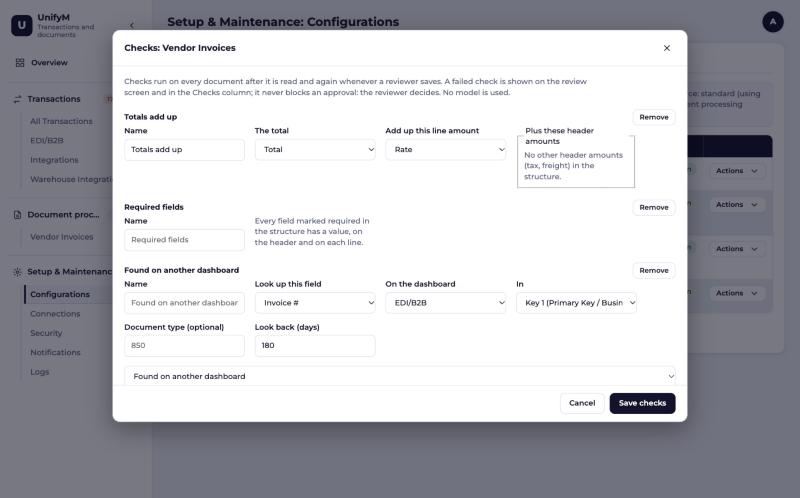
Required fields, totals that add up, allowed values, and matching against your other dashboards, such as an invoice's PO number against the purchase orders on your EDI/B2B dashboard.
A person reviews
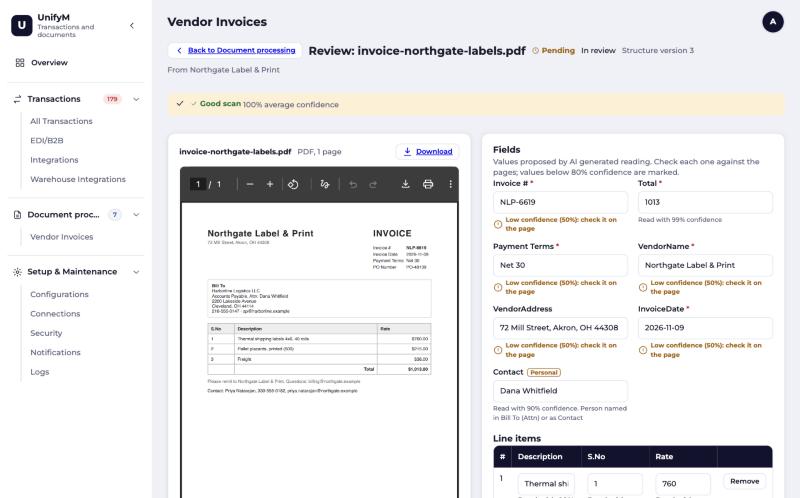
Pages on the left, values on the right, low-confidence values and failed checks marked. Correct, approve or reject.
Delivered
Your system pulls approved documents from the dashboard's API, or UnifyM posts each one to your REST endpoint in your format, and retries until it is accepted.
Built for documents that matter
Structure from samples
Gen AI proposes the fields; a person edits and approves them. Nothing goes live without an approved structure.
Checks and matching
Totals, required and allowed values, and matching against your EDI/B2B and integration records, without anyone writing a query.
Review that earns trust
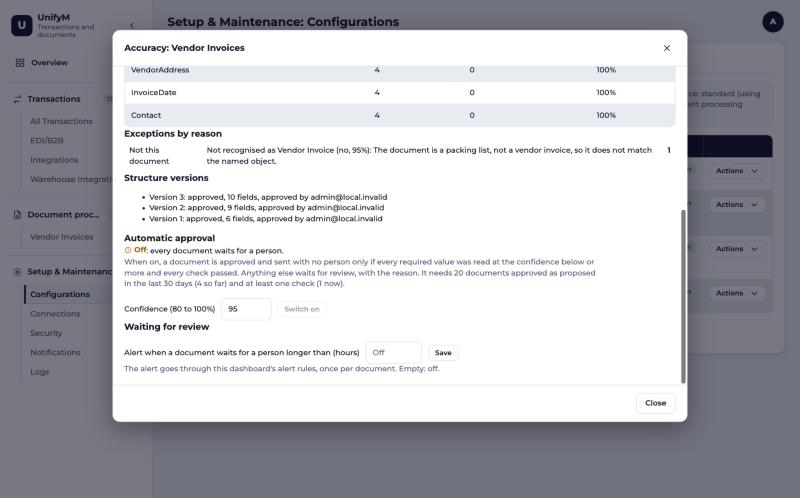
Every document is reviewed at first. Once 20 documents in 30 days were approved as proposed and checks are in place, a Service Administrator can let confident documents that pass every check approve themselves.
One inbox, many document types
One front dashboard receives everything and AI sorts each document to the right one. Unsure? It stops for a person.
One list to approve
The Document processing page lists what waits for each reviewer across their dashboards, oldest first. Approve one and the next one opens.
Help when a document stops
Stopped documents are grouped by why, each with a plain explanation and the fix: read a whole group again, or send it again. Not sure what a document is? Ask, with masked text only.
Scan quality
Each page is graded Good, Fair, Poor or Blank, with the reasons in words. A poor scan is still read, but never approved automatically.
Tracking and accuracy
Per dashboard: received, waiting, approved as proposed, time to approval and exceptions, plus pages read this month. Per field: how often reviewers changed the proposed value.
Alerts when it waits
Failed documents go through your alert rules, and a "waiting for review" alert fires when a document waits longer than you allow.
Your format
Output mapping with fixed rules (paths, constants, value maps, date formats, line items as lists), previewed and versioned with the structure.
Promoted like everything else
Build and approve in test, then promote the dashboard, its structure, checks and output mapping to production.
Pages on your plan
Pages read count against your plan. Over it, documents wait to be read later: nothing is refused or lost.
Mark it personal, and the model never sees it.
Before any text reaches a language model, UnifyM replaces email addresses, phone numbers and card numbers with placeholders on every document. When a document's structure has fields marked as personal (AI proposes them, your administrator decides), it also replaces those fields' values and searches the running text for names, addresses, dates of birth, ID, policy and bank numbers and medical details, using fixed rules and OCI Language's personal-data detection. Values are put back only inside your environment. If the detection fails, the document stops: unmasked text is never sent.
The model gets text, never page images, and only OCI-hosted models are used. Every call is kept with exactly what was sent.
Security and hosting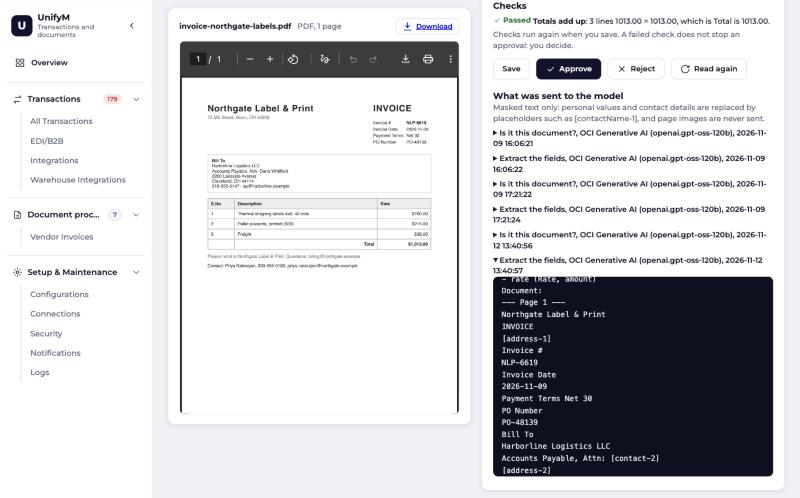
Documents teams start with
Vendor invoices
Header, lines and totals, matched to the purchase order.
Purchase orders
From partners who do not send an 850.
Bills of lading and proofs of delivery
Carrier paperwork tied to your shipments.
Claims
With every personal value masked before the model reads it.
Watch an emailed invoice become approved data.
Let's work together
Talk to the team that builds UnifyM. Book a demo, send us your security questionnaire, or ask what a plan includes.